When it comes to reliability and durability, it's no secret why SSDs are increasingly overtaking traditional hard drives in popularity. While it is possible for some problems to occur with SSDs, SSD failures are much less common compared to HDDs.
Unlike conventional hard drives, which are made up of fragile mechanical parts that can fail with the slightest shock, solid-state drives are based on semiconductor chips that store data using non-volatile memory.
Significant performance improvements are another major benefit of SSD technology. SSDs, which provide faster system and application loading times, can be a great option for users who require reliable data storage.
However, SSDs have their drawbacks.
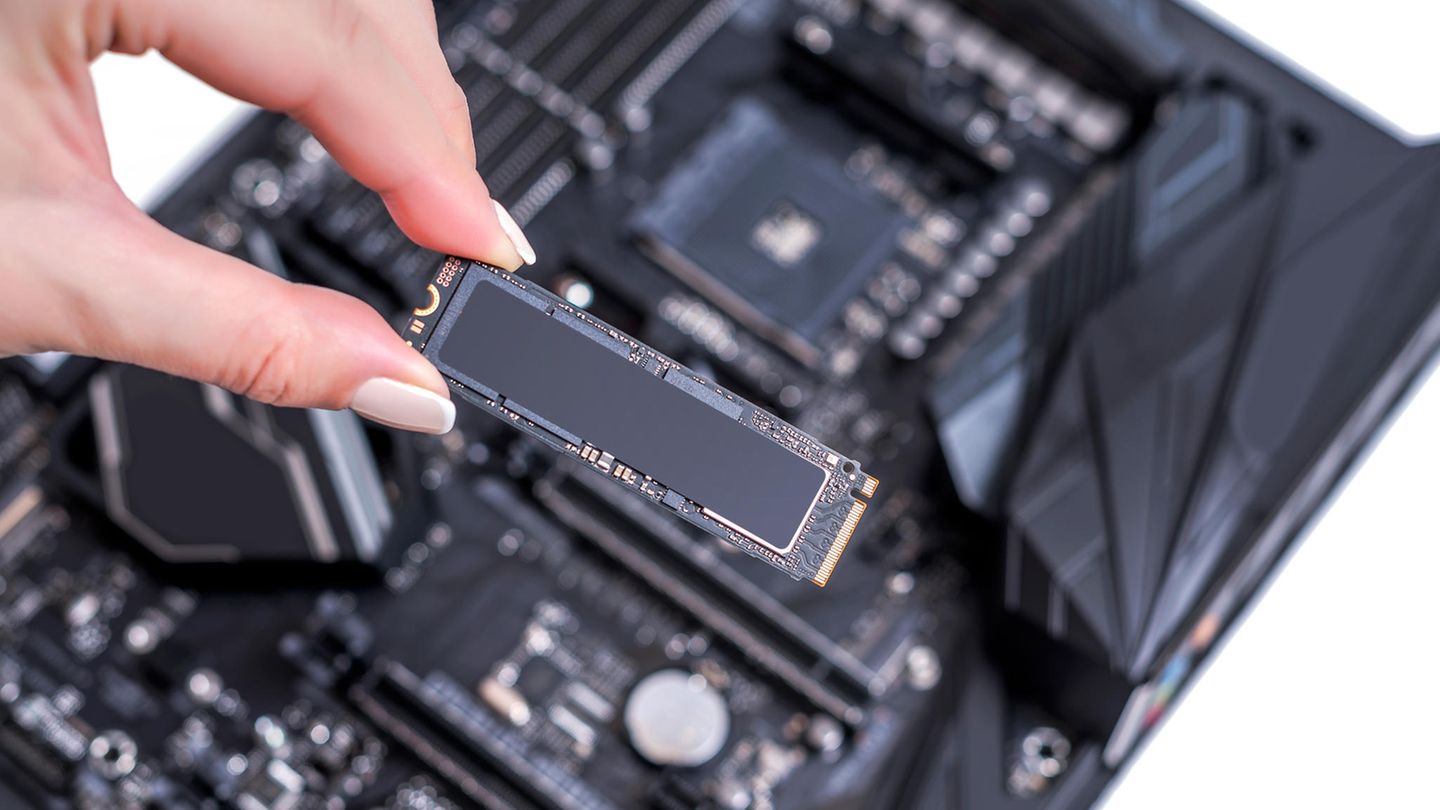
Symptoms of a faulty SSD
Before we get into the signs of a failing SSD, there's one important thing to note: Determining that an SSD is failing is more difficult than determining that a hard drive is failing.
Because SSDs rely heavily on power supply capacitors and have no moving parts, they are vulnerable to failures caused by power surges and logic errors rather than physical damage.
Additionally, unlike traditional hard drives, which typically alert users to failure with a beep or other distinct sounds coming from the system unit, there is no noise to let you know that your SSD has failed or is failing. -it's about to fail.
Here are eight SSD failure symptoms to watch out for:
Slow performance.
One of the first signs of SSD failure is a noticeable decrease in performance. Your computer may take longer to boot, applications may launch slowly, and file transfers may be slow.
Frequent freezes or crashes.
If your system frequently freezes or crashes, especially during disk-intensive operations, this could be a sign of impending SSD failure. Freezing or crashing can happen accidentally or when accessing certain files or applications.
Read or write errors.
When an SSD starts to fail, you may experience read or write errors when accessing files or saving data. These errors can prevent you from opening files, cause file corruption, or cause data loss.
Disappearing files or folders.
Faulty SSDs can cause files or entire folders to disappear. This can happen spontaneously, making it difficult to recover lost data.
Bad sectors.
Like traditional hard drives, SSDs can develop bad sectors over time. These are areas of the disk that are no longer functional and can lead to data loss or corruption.
Overheat.
Excessive heat can accelerate SSD degradation. If your SSD is too hot to the touch or your system frequently shuts down due to overheating, this may indicate a problem with the SSD.
SMART errors.
SMART (Self-Monitoring, Analysis and Reporting Technology) is a feature found in most SSDs that monitors their health and reports any potential problems. If your system displays SMART errors related to the SSD, this is most likely a sign of an impending failure.
Your machine won't boot.
You will receive a "No bootable device" or "No bootable media" error message (on Windows) or a flashing question mark (on Mac devices).
Checking the functionality of the SSD.
So, if your system begins to behave strangely, and especially if you notice one of the unpleasant symptoms, be sure to check the health of your drive before making sure that you do not lose important data.
You can use third party software like CrystalDiskInfo or cancel the lifespan of your SSD.
If you are using a Windows computer, you can also check the status of your SSD, external or internal, using the Check Disk utility. To check the health of your SSD using chkdsk, open a command prompt window by typing cmd in the Windows search bar, and then select Run as administrator.

After that, type chkdsk C: /f /r /x and press Enter. This will run a scan of your SSD and report any errors found. Change C to your drive letter.
Common causes of SSD failure.
The SSD issues listed below may explain some of these failures. Feel free to use this as a troubleshooting guide to identify and fix the most common SSD problems:
SSD degradation.
SSD degradation refers to the gradual deterioration in the performance and reliability of an SSD over time. While SSDs are known for their durability compared to traditional hard drives, they are not immune to wear and tear.
While SSD degradation is inevitable, modern SSDs are designed to mitigate these effects with advanced error correction techniques, wear leveling algorithms, and improved NAND flash memory technology.However, it is still recommended to monitor the health of your SSD, back it up regularly, and replace it if you notice a significant drop in performance or other signs of failure.
Several factors can contribute to SSD degradation:
- Write endurance. Each SSD has a limited number of program/erase (P/E) cycles. Every time data is written to the SSD, P/E cycles are used. As these cycles are used, the SSD's lifespan shortens and its performance may begin to degrade.NAND flash memory is worn out. SSDs use NAND flash memory cells to store data. Over time, repeatedly reading and writing data to these cells can cause them to degrade. This may result in slower write and read speeds and potentially lead to data corruption.
- NAND flash memory is worn out. SSDs use NAND flash memory cells to store data. Over time, repeatedly reading and writing data to these cells can cause them to degrade. This may result in slower write and read speeds and potentially lead to data corruption.
- Program/Erase cycles. In addition to write longevity, frequent program/erase cycles on an SSD can contribute to its degradation. As data is constantly written and erased, the electrical charge of the NAND cells can wear out, resulting in poor performance
If your SSD fails, the only guaranteed way to recover its data is to use a data recovery service. This is because these service providers have the necessary tools to work on your device and retrieve files from it.
Data Recovery/ Contact us 24/7 and make sure your files are returned regardless of failure.